 By: Admin
CSA O86-14 Canadian Wood Code now Available
The new CSA O86-14 code has been implemented in RISA-3D v15.0 and RISAFloor v11.0

Try the Complete RISA Suite for
10 Days FREE

RISA Education

Video Library

Online Help

Get Support

About Us
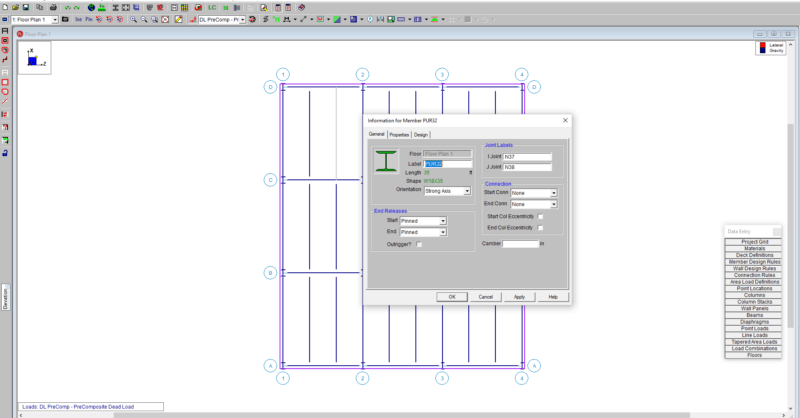
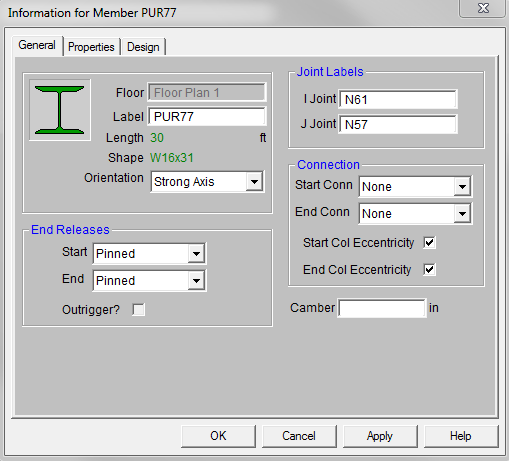
RISAFloor now has the ability to double-click a member to open the Member Information dialog. This feature has been in RISA-3D but now it is available in RISAFloor. Double click any member in your model and the Member dialog box opens. It has three tabs: General, Properties and Design.
All the same information is in the Members spreadsheet but now you can quickly access the member properties for a single member using the double-click feature.


The new CSA O86-14 code has been implemented in RISA-3D v15.0 and RISAFloor v11.0
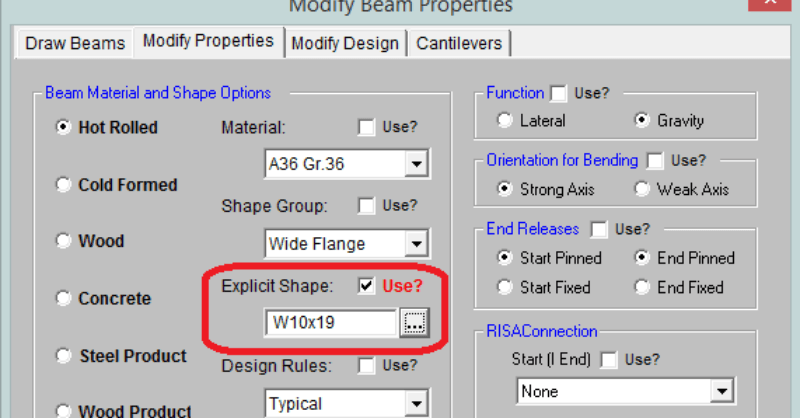
RISAFloor is a design program in which it takes basic shape criteria about your beam or column members and then selects an optimal size to meet...
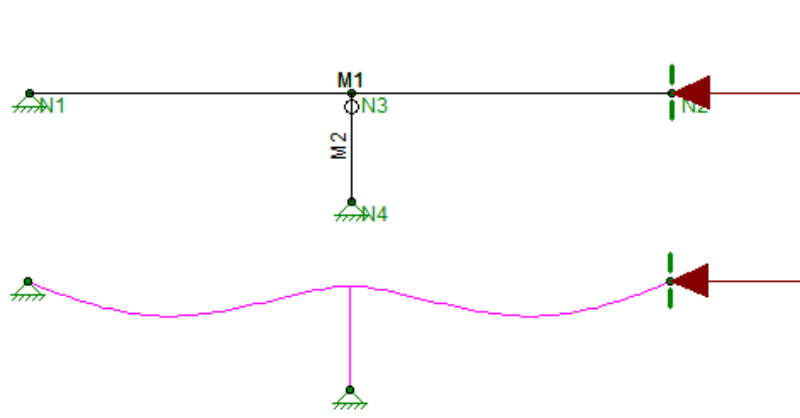
The axial compression and flexure strength of beams and columns is dependent on the spacing of elements which provide bracing along the length of...