 By: Admin
Drawing Grid and Other Modeling Improvements
RISAFloor v13 includes a variety of modeling features which allows users to quickly create and manipulate geometry. These features include...

Try the Complete RISA Suite for
10 Days FREE

RISA Education

Video Library

Online Help

Get Support

About Us
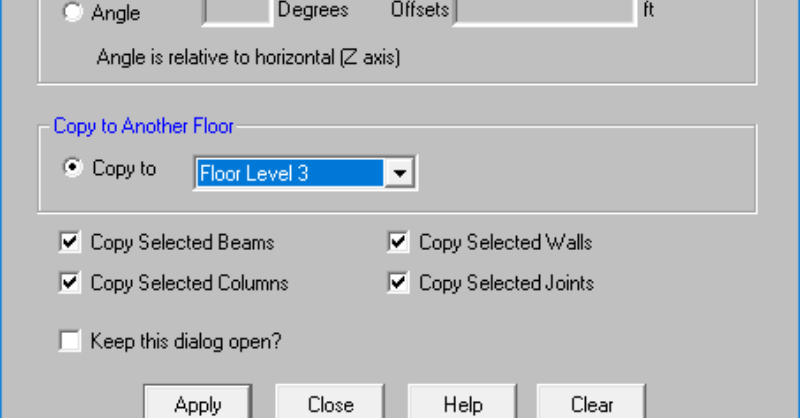
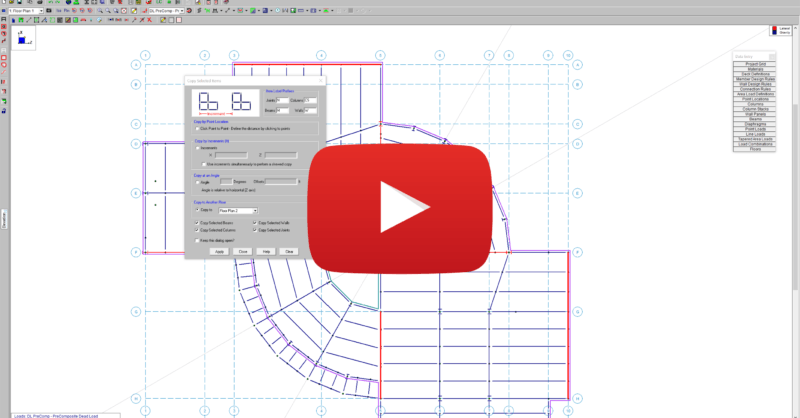
RISAFloor v13.0 now includes the added ability to graphically copy elements from one floor to another floor. This feature will expedite the modeling process by giving designers more control over which beams, columns, walls and joints are carried over to another floor. To access the tool, click on the Copy Selected Items button to open the dialog box.
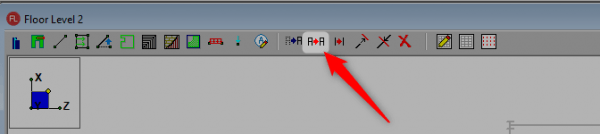
Once the dialogue appears, choose the Copy to Another Floor radio button.

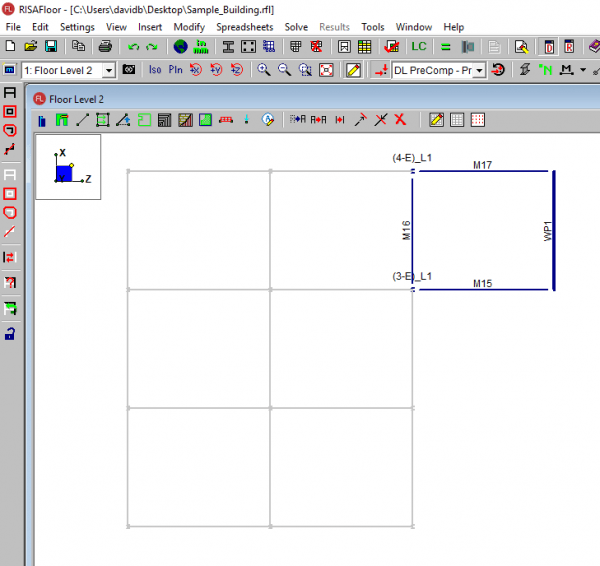
To graphically copy specific elements to another floor within RISAFloor, first select the elements that you would like to copy. In the below example, columns (3-E) and (4-E), beams M15, M16 and M17 and wall WP1 are selected to be copied to the floor above the current floor.
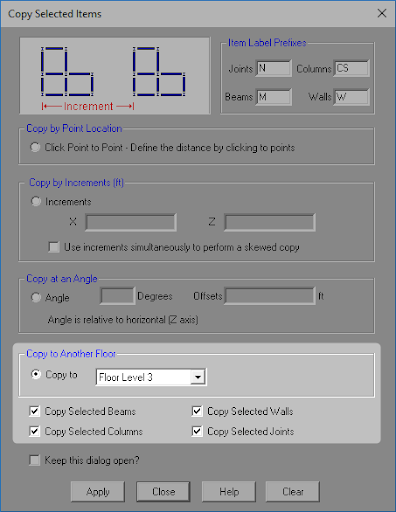
Click the Copy Selected Items button, selecting the floor above the current floor (Floor Level 3), while also selecting which element types (beams, columns, wall and joints) you want to copy. Once the selection is made click Apply.
The selected items will now appear on Floor Level 3.

RISAFloor v13 includes a variety of modeling features which allows users to quickly create and manipulate geometry. These features include...

RISAFloor v14 now includes floor vibration calculations per the 2nd Edition of AISC Design Guide #11. To select this code for your design, simply...

One of the most overlooked design criteria for commercial buildings is the tendency of the floor system to bounce or vibrate due to human...