 By: Admin
How to Model a Two-Dimensional Component in RISA-3D
If you have ever tried to solve a two-dimensional model in RISA-3D, you have ultimately run into instabilities in your model because your model...

Try the Complete RISA Suite for
10 Days FREE

RISA Education

Video Library

Online Help

Get Support

About Us
When your RISA-3D model is not behaving as you anticipated, one of the best tools you have is viewing the deflected shape. Displaying the deflection graphically will help you visualize how the model is behaving and will often times bring to light modeling errors.
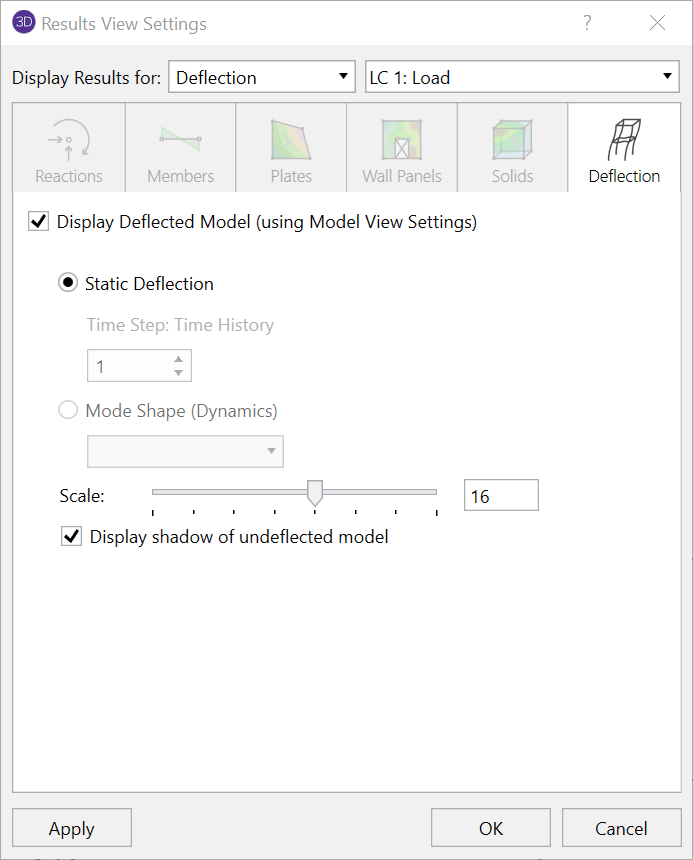
Turn on the deflected shape by clicking on the Result View Settings button on the Home tab.
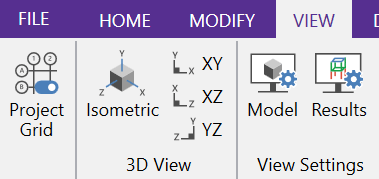
Or by clicking on the Deflection button found on the View Toolbar.

After the deflected shape is enabled, it is possible to increase the magnification factor of the deflection so that individual locations can be evaluated in more detail.
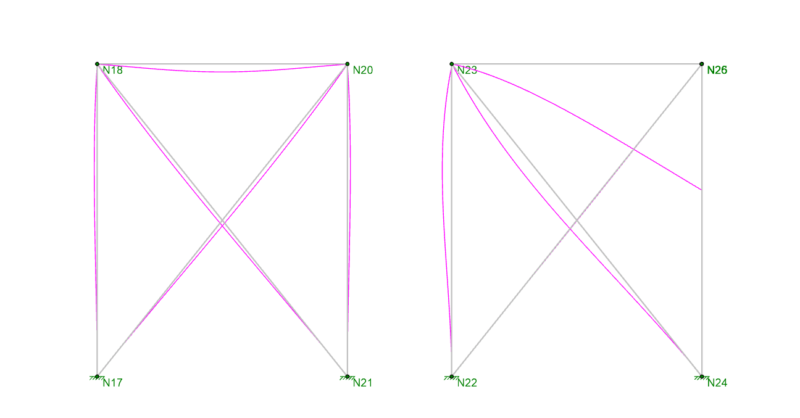
The deflected shapes pictured below illustrate two simple braced frames. These two images are a perfect example of how you can get seemingly good results including reactions, code checks and even Joint Deflections for both frames.
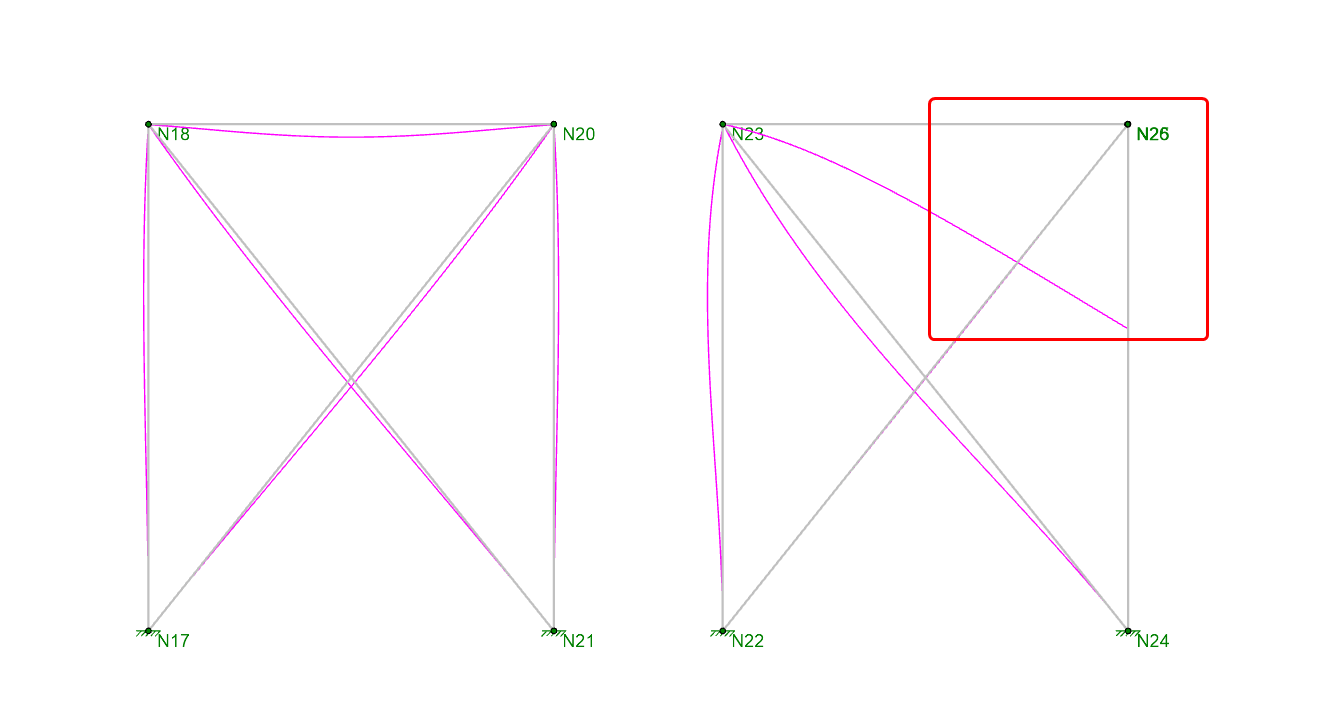
However, the right frame above shows that the beam is not connected to the column or brace. You need to display the deflected shape in order to catch this modeling error.
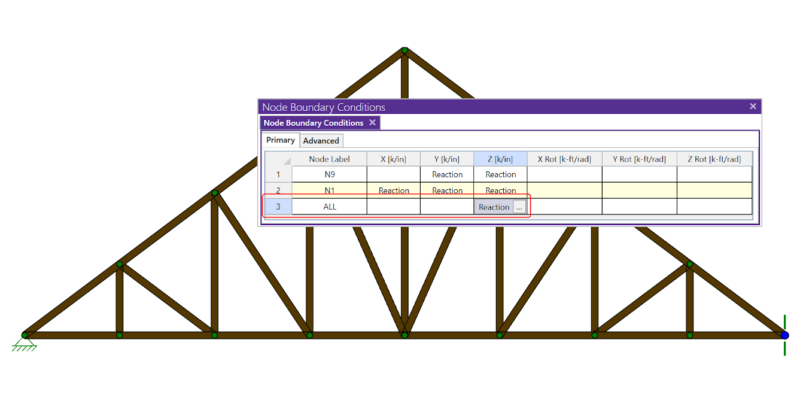
If you have ever tried to solve a two-dimensional model in RISA-3D, you have ultimately run into instabilities in your model because your model...
Investigating P-Delta instabilities in RISA-3D (or RISA-2D) can be difficult. The first step is usually to solve the model without the P-Delta...
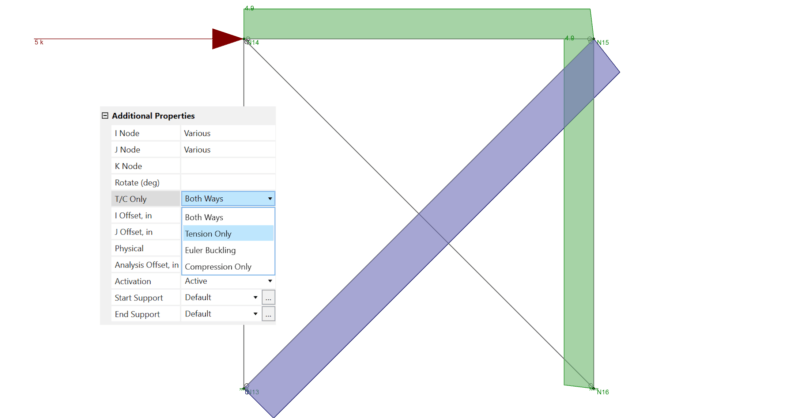
Before reading this, be sure to check out the article linked below on X-Bracing. In RISA-3D, you can set a member to be tension-only by selecting...