 By: Admin
Customizing Labels in RISA-Revit Link
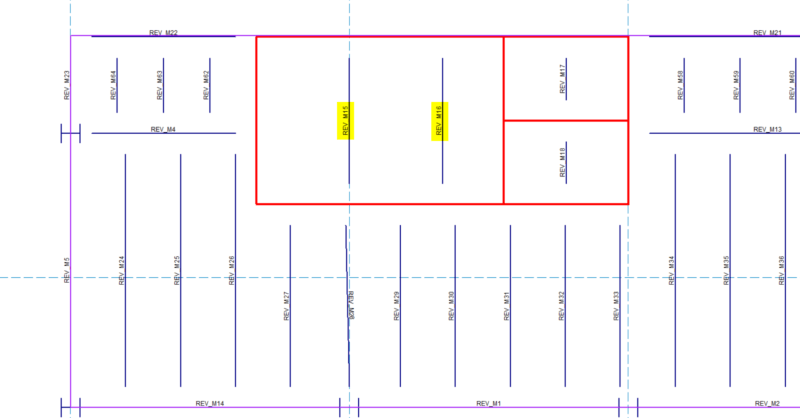
You can now customize the member and nodes names Revit uses during the export to RISA. When you export your Autodesk Revit model to RISA, the...

Try the Complete RISA Suite for
10 Days FREE

RISA Education

Video Library

Online Help

Get Support

About Us
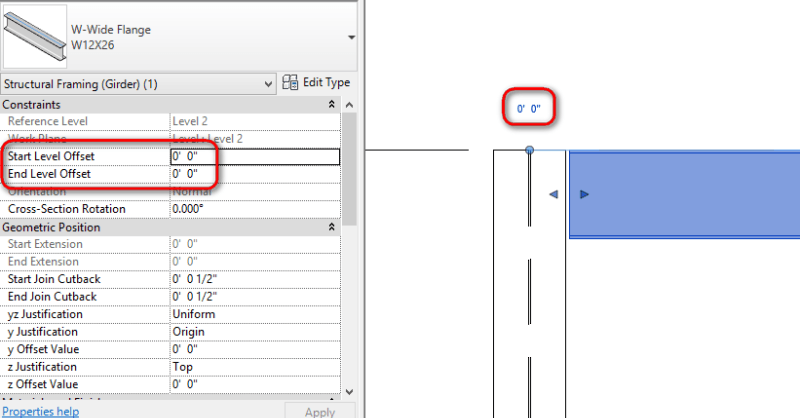
Revit offers two options for setting the elevation of beams. The way these are used has a significant impact on how those members are round tripped to RISAFloor, so it is important for you to use them correctly. The Level Offsets are available at each end of the beam. They can be modified through the Properties window, or by clicking on the blue text at the end of each beam:
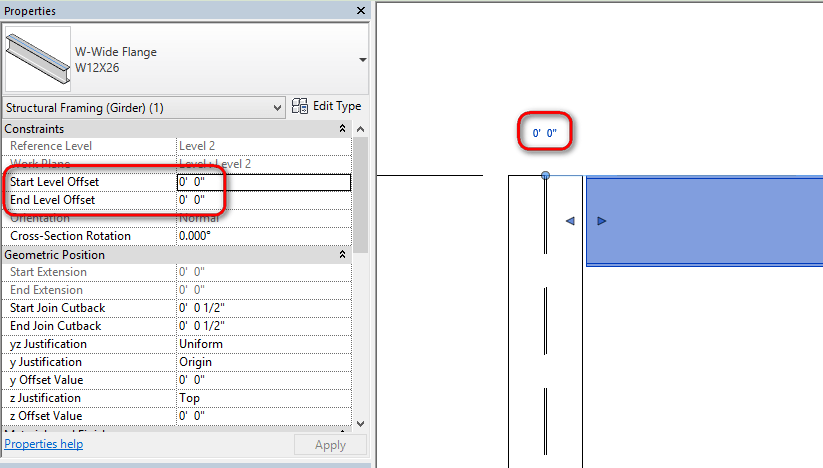
These offsets are intended to allow beams to be sloped, as shown below:

Because RISAFloor currently only supports sloping on the top floor of a building, this means that the Level Offsets should be set to zero for all of the beams in your Revit model, except for those beams which have their Reference Level set to the topmost level. When round-tripping between RISAFloor and Revit the Level Offsets will be updated based on the slope elevation values in RISAFloor. Also, RISAFloor does not currently support negative Level Offsets, so the reference level for sloped beams should always be set at the bottom of the slope, such that all Level Offsets are positive values.
Beams in Revit must often be moved uniformly down in order to account for slab/deck thickness. For this purpose the z Offset Value should be used:
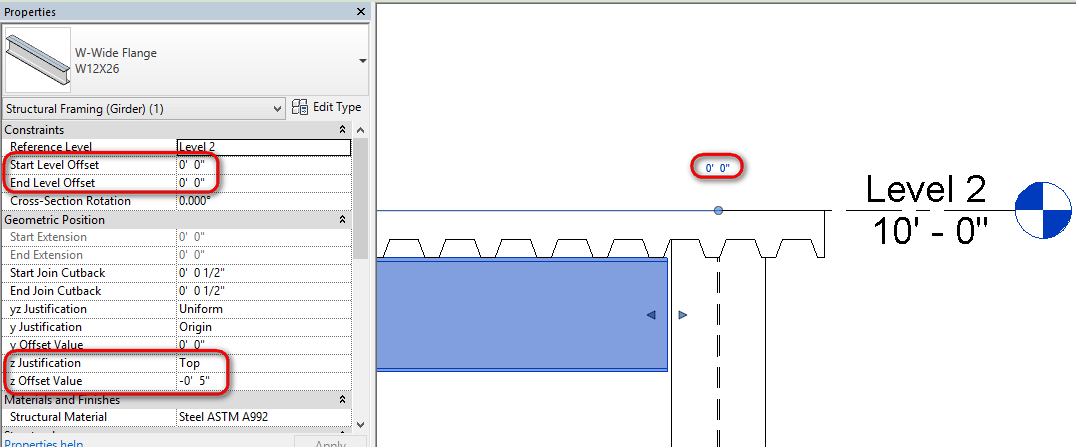
This offset is irrelevant for structural analysis, so RISAFloor ignores this value. If Level Offsets were used in Revit instead then they would be set to zero upon going into RISAFloor (since you cannot have negative offsets) and then the beams would be reset to zero upon round tripping back into Revit. The RISA-Revit Link will never alter a z Offset Value.
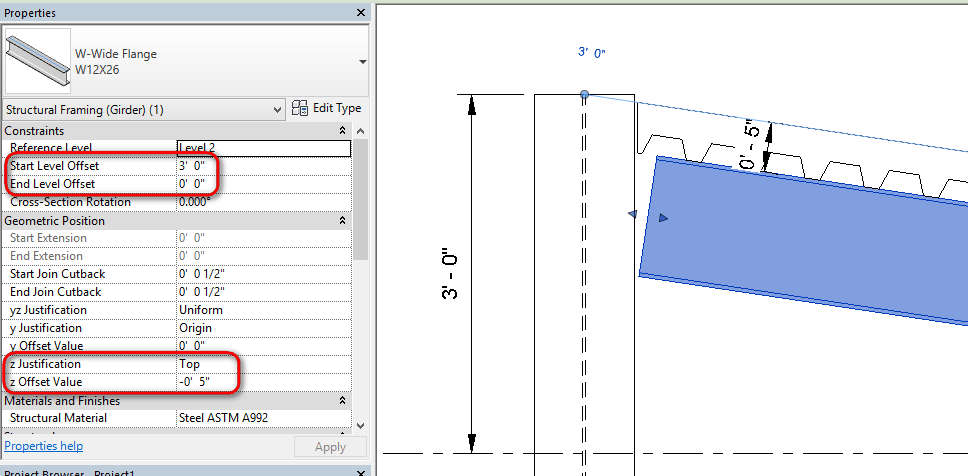
Sometimes it can be useful to specify both Level Offset and z Offset in the Revit model, such as the situation below where a sloped beam also must be offset to account for deck thickness.
You can now customize the member and nodes names Revit uses during the export to RISA. When you export your Autodesk Revit model to RISA, the...

RISA is pleased to announce the release of the latest RISA-Revit Link which includes compatibility with Revit 2023. The RISA-Revit Link v23.0...
RISA is pleased to announce the release of the latest RISA-Revit Link which is compatible with Revit 2024. The RISA-Revit Link v24.0 allows...