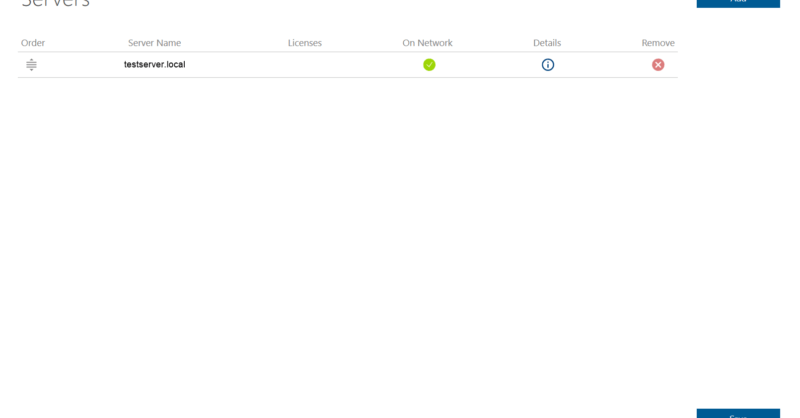
How to direct your local PC to the Network license?
How a Network license works RISA network licensed products are hosted with a License Server. This license server distributes the licenses to the...

Try the Complete RISA Suite for
10 Days FREE

RISA Education

Video Library

Online Help

Get Support

About Us
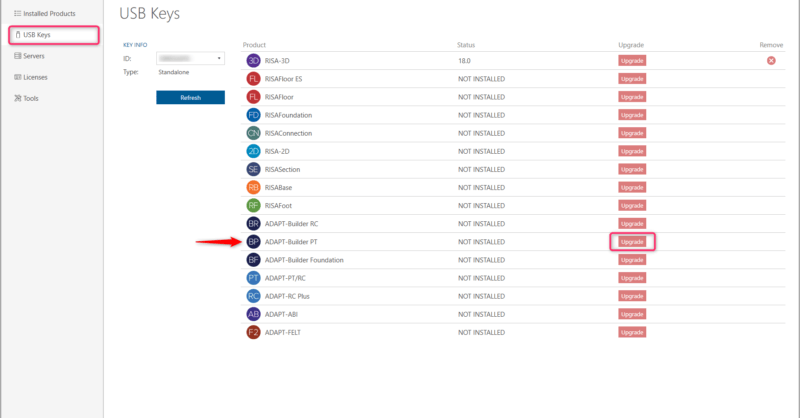
The RISA licensing dashboard allows users to add/upgrade their existing RISA/ADAPT products to their RISA standalone or network license keys. Before using the licensing dashboard to complete the conversion, please reach out to our sales team to process your order and receive all necessary information.

Install RISA/ADAPT program
Plug in your RISA key
Open your RISA Licensing Dashboard from the Start menu. For RISA products this can be found in the following location: C:\Program Files\RISA\Utilities\bin\LicensingDashboard.exe. For ADAPT products this can be found in the following location: C:\Program Files (x86)\ADAPT\Utilities\bin. If you cannot find the RISA Licensing Dashboard, you can download it by clicking the button below.

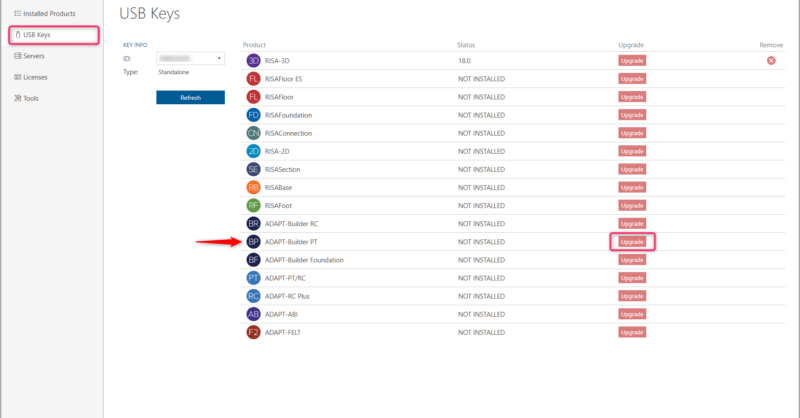
Once open, click Skip and access the USB Keys tab.
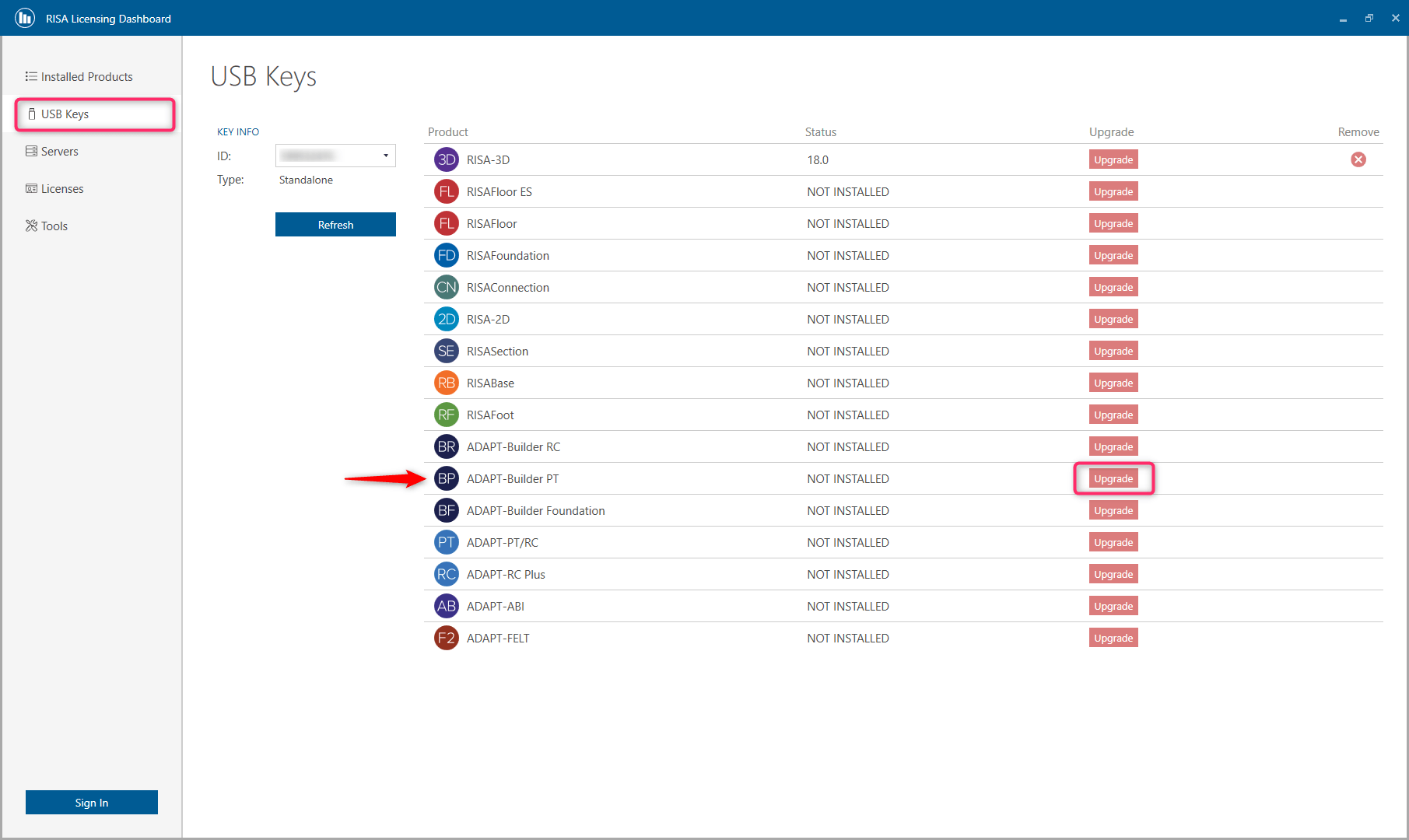
Click Upgrade for the Product you are adding.
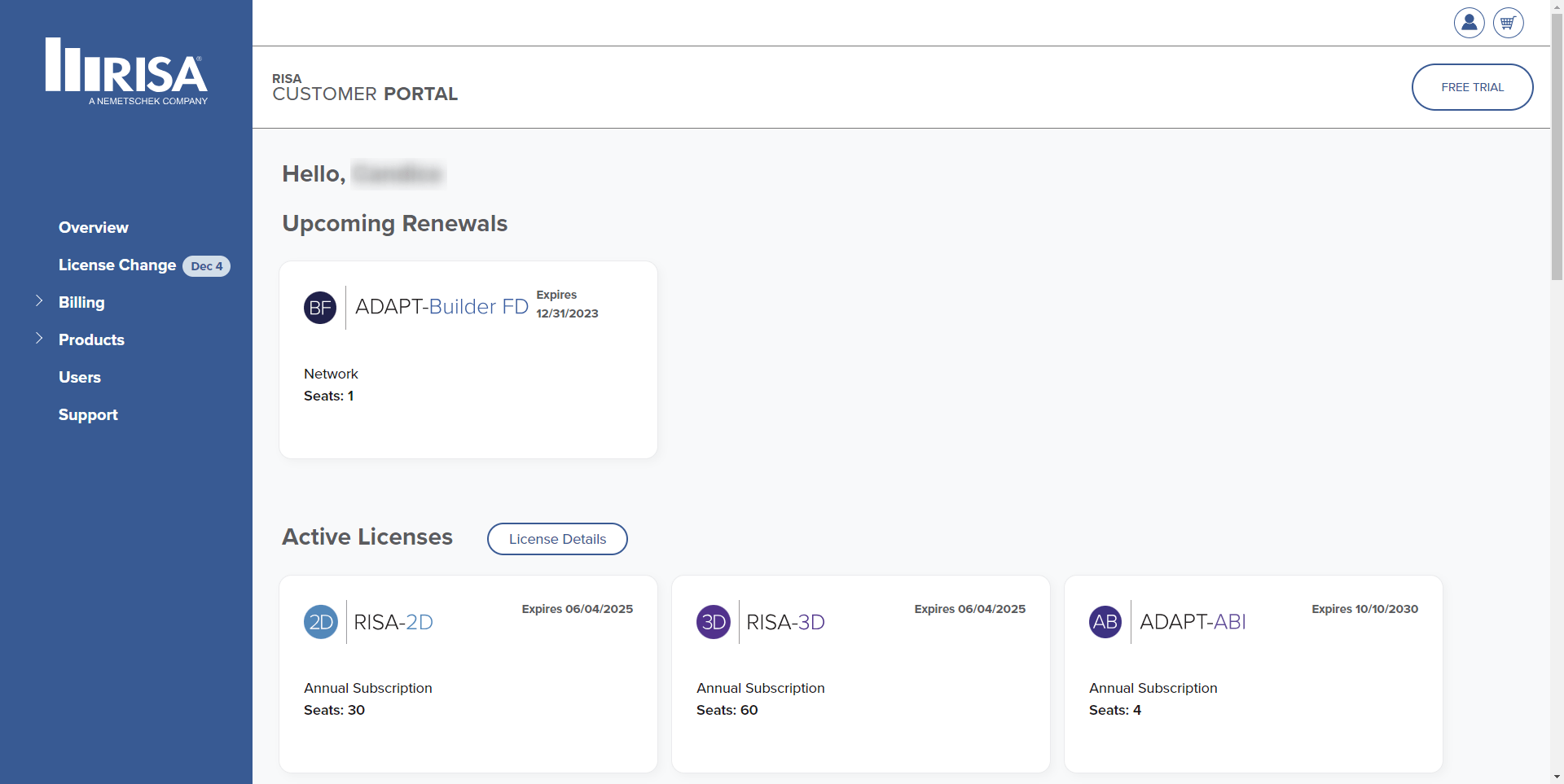
Enter the RUS password provided from RISA or found in the Licensing Details page of your Customer Portal account.
Step 1: Update the Key
Make sure RISA key is plugged into the Server
Open your RISA Licensing Dashboard from the Start menu. For RISA products this can be found in the following location: C:\Program Files\RISA\Utilities\bin\LicensingDashboard.exe. For ADAPT products this can be found in the following location: C:\Program Files (x86)\ADAPT\Utilities\bin. If you cannot find the RISA Licensing Dashboard, you can download it by clicking the button below.
Once open, click Skip and access the USB Keys tab
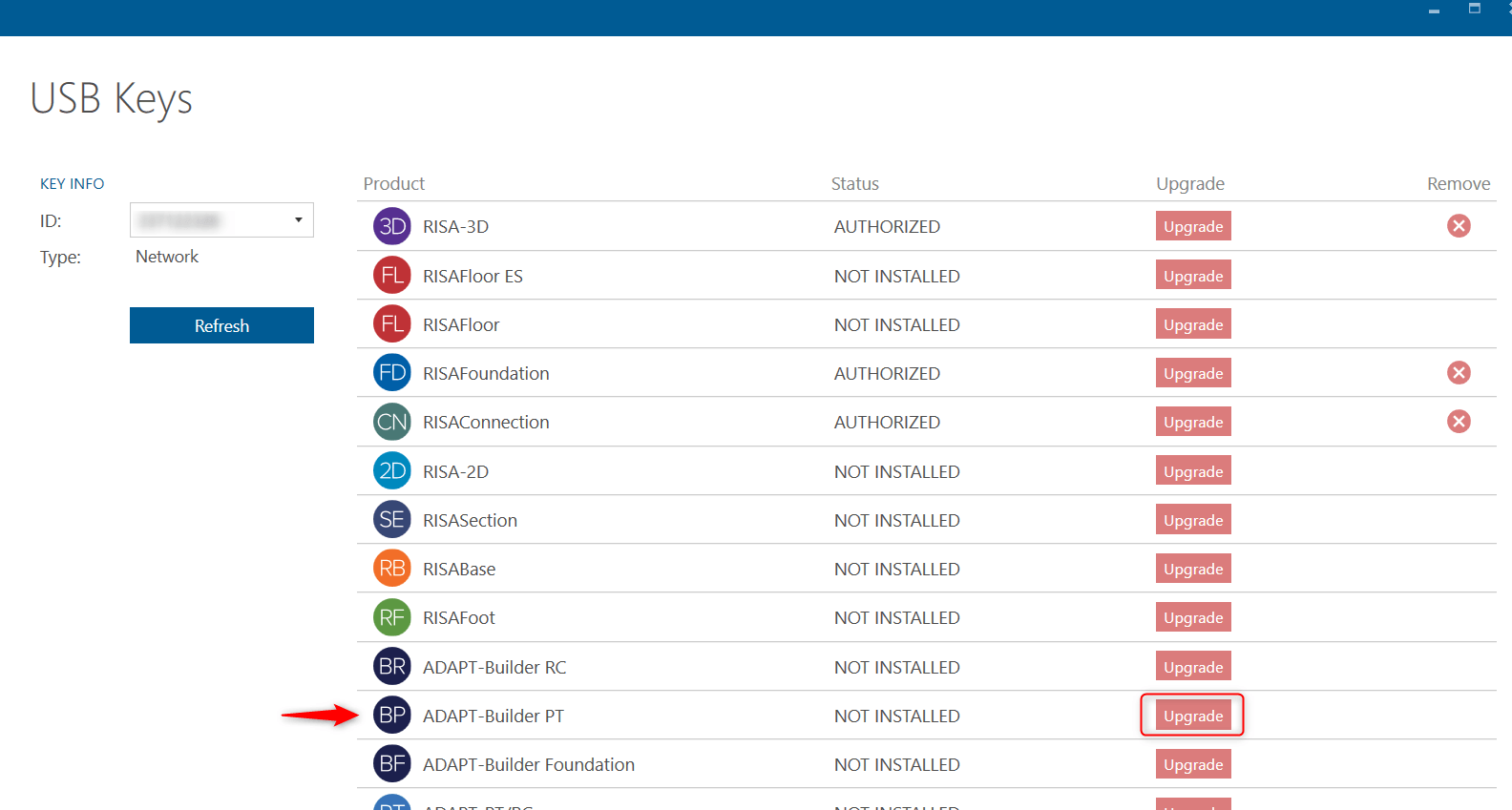
Click Upgrade for the Product you are adding.
Enter the RUS password provided from RISA or found in the Licensing Details page of your Customer Portal account.
Step 2: Update the License Manager
Download the license file provided by RISA to a local location
Open the WLMAdmin tool from C:\RISA\Sentinel RMS X.X.X folder. Where X.X.X is the latest version of the Sentinel RMS installed on the machine. Note: For ADAPT products Sentinel RMS 9.6.0 or later is necessary.
Expand Subnet Servers to find the Server name
Right click on the name of the License Server and select "Add Feature- From a File- To a Server and its File"
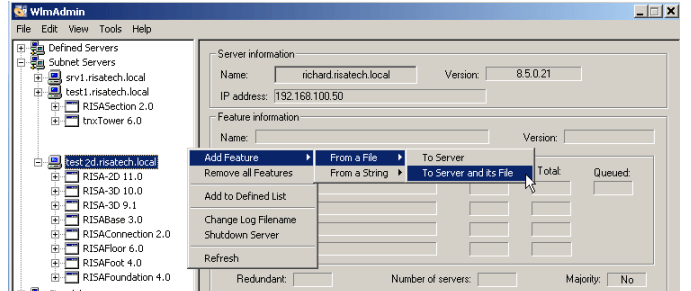
Select the license file from the local location and click Open.
For further information and more detailed instructions, visit the RISA Online Help by clicking the link below:

How a Network license works RISA network licensed products are hosted with a License Server. This license server distributes the licenses to the...
The RISA licensing dashboard allows users to add their existing ADAPT products to their RISA standalone or network license keys. Before using...
The RISA Customer Portal provides access to all your account information, including installation downloads, licenses, usage stats and the ability...