 By: Admin
New Features in RISA-3D v20.0.4 now Available!
We are pleased to announce our latest RISA-3D release. Our teams have been working hard to add the features and functionality that our customers...

Try the Complete RISA Suite for
10 Days FREE

RISA Education

Video Library

Online Help

Get Support

About Us
When using rigid diaphragm analysis in RISA-3D it can be useful to evaluate the story shear in each frame. This is a perfect application for the Internal Force Summation Tool. The first step is to solve the desired load combination.
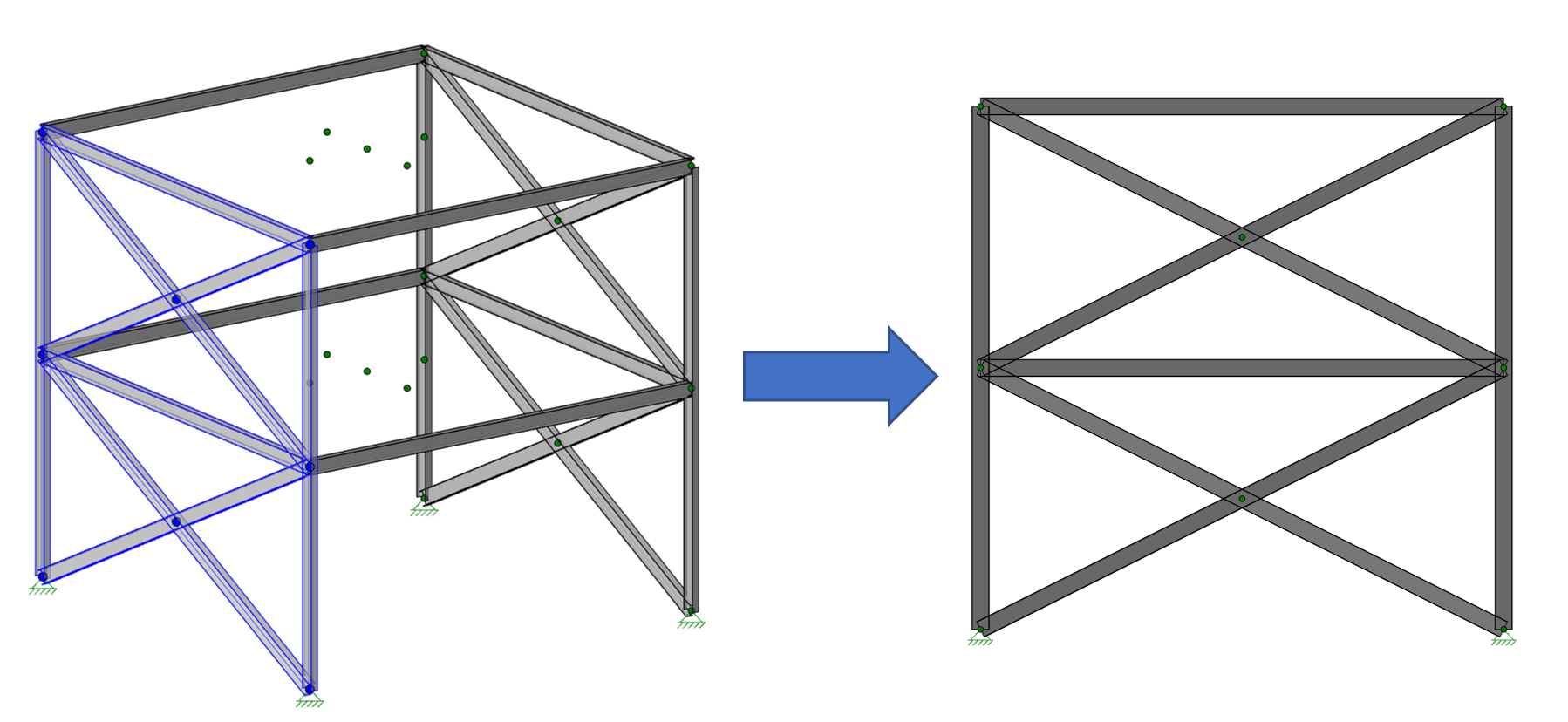
Next, select one of the braced frames in the model and using the selection tools on the far left side of the 3D window, turn off the unselected parts of the model to show only the frame which you are interested in. Next, snap the model into an elevation view of the frame in order to make the next step easier.
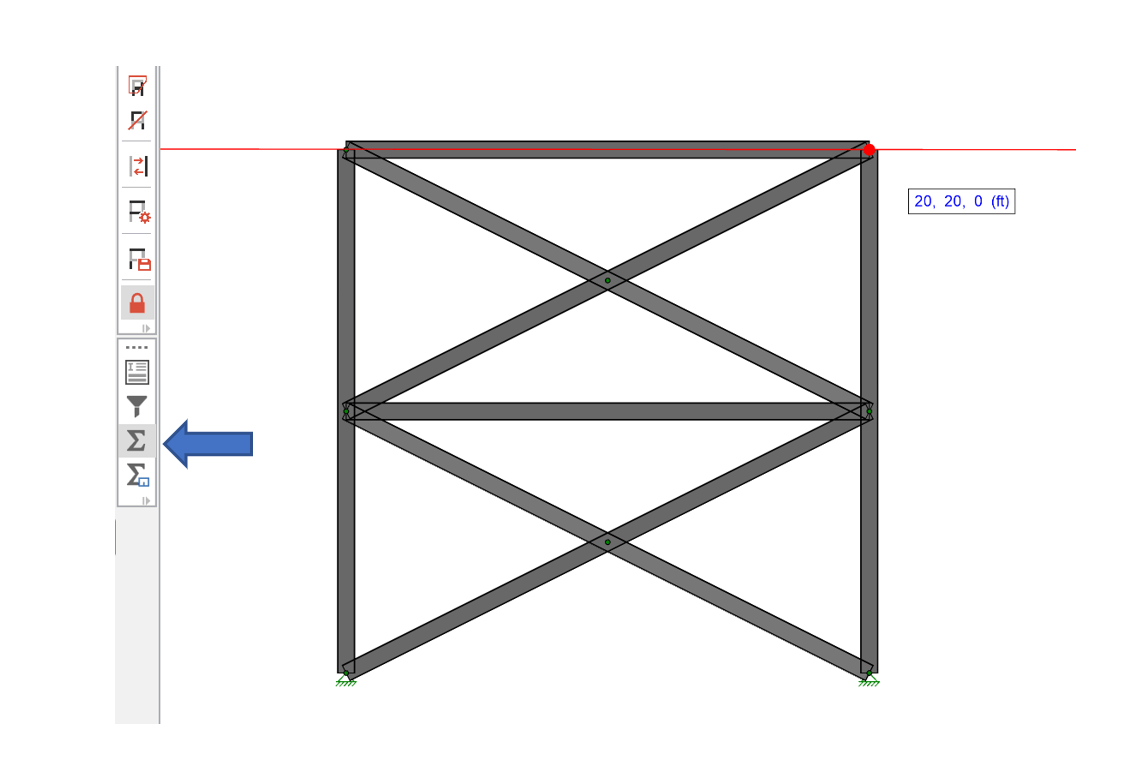
Click on the "sigma" icon (Internal Force Summation Tool) below the selection toolbar and then click on two joints of the frame that are at the same elevation to define a horizontal cutting plane.
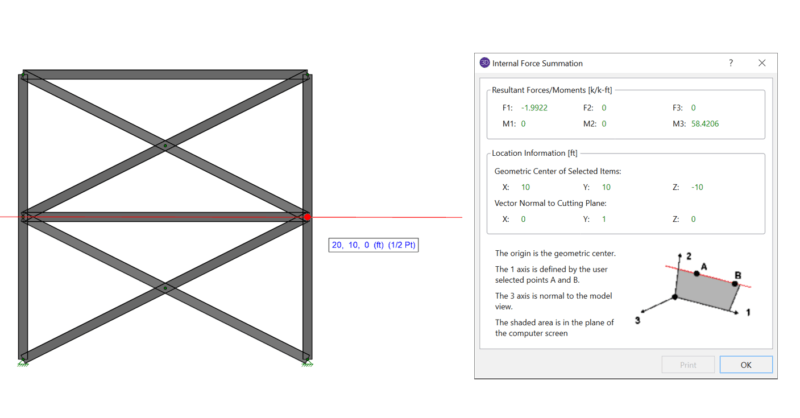
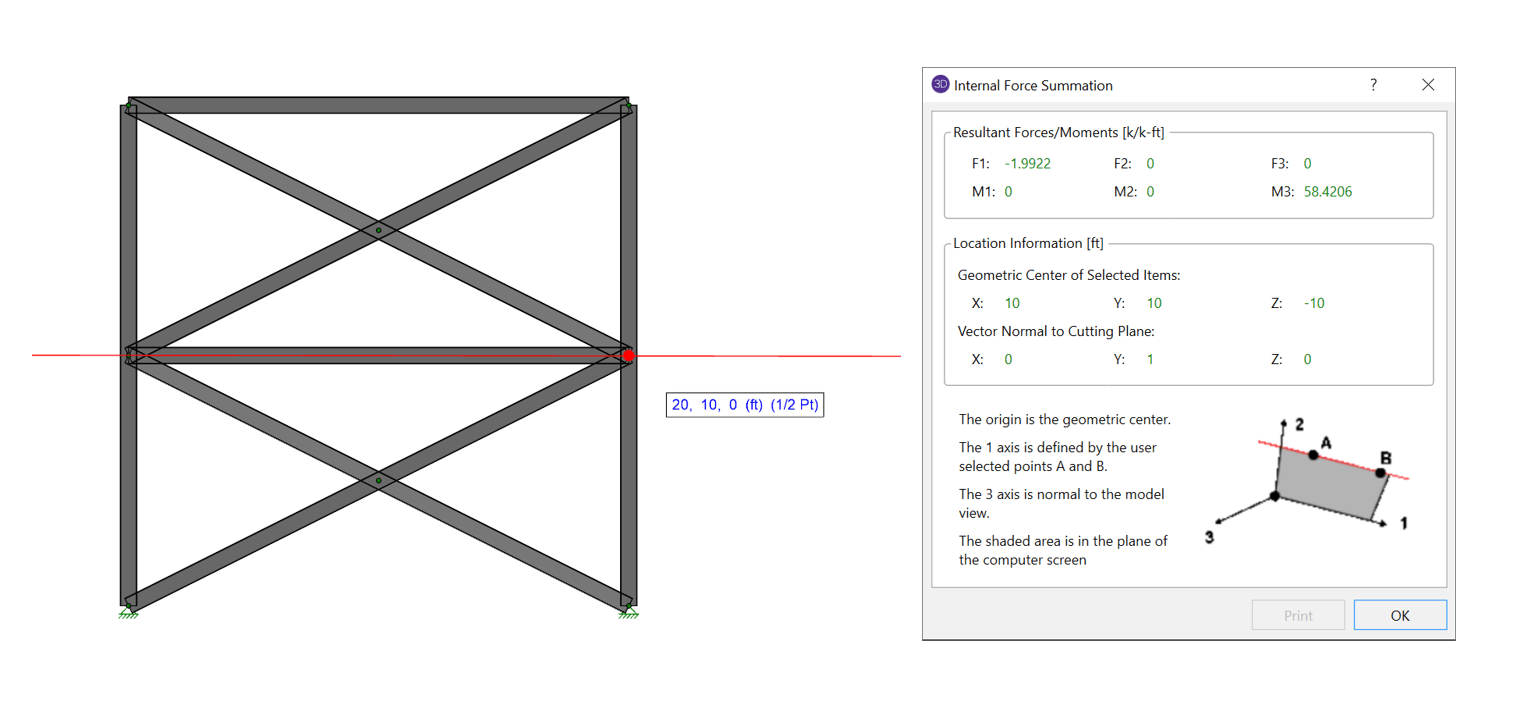
Once the cutting plane is defined (by clicking the second joint) you can slide the plane up and down your frame to select the vertical location of your cutting plane. Click a third time for a dialog box which explains what each force is. Here, F1 represents the story shear.
We are pleased to announce our latest RISA-3D release. Our teams have been working hard to add the features and functionality that our customers...
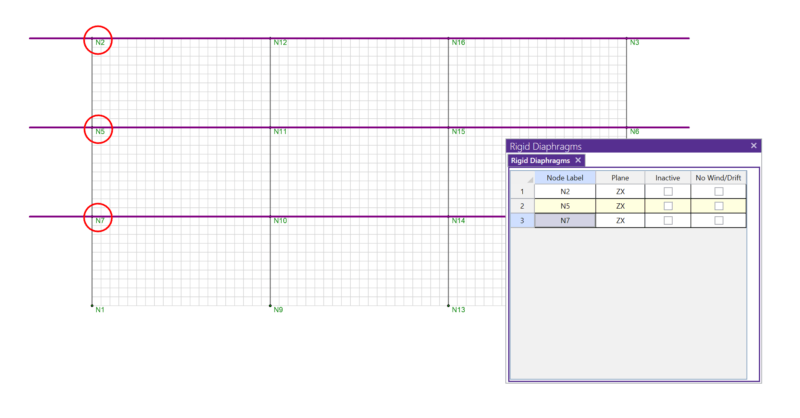
In RISA-3D, rigid diaphragms can be added using the Diaphragm spreadsheet. Just enter the node label and then choose the horizontal plane. ...
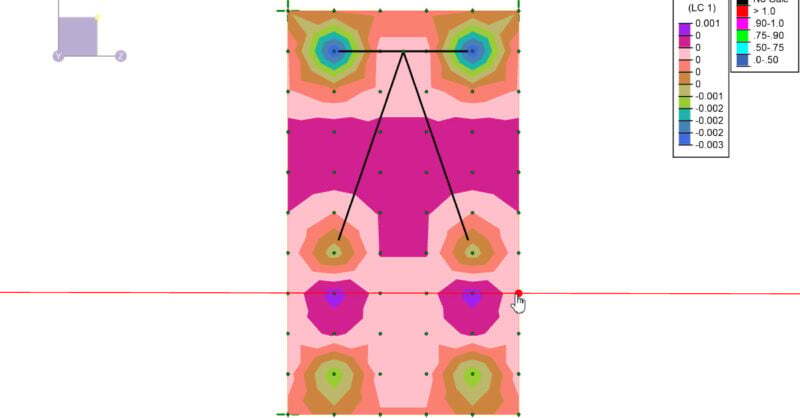
A number of improvements have been made to solid elements in RISA-3D v19 allowing users enhanced flexibility in viewing input data as well as...