 By: Admin

Why Can’t I See My RISASection Shapes in the Shape Database?
When using RISA Integration between RISASection and RISA-3D, RISA-2D and/or RISAFloor, there are a few common mistakes that people make when...

Try the Complete RISA Suite for
10 Days FREE

RISA Education

Video Library

Online Help

Get Support

About Us
In order to get code calculations, RISA-3D and RISA-2D need to know what type of shape would be most similar to yours. This is because the program needs to use the correct code equations for your shape type.
You can easily add your custom shape to the Cold Formed library of shapes. First, pick a similar shape type (Channel, Hat, Zee, etc.) and then add the section properties into the Shape Database. You can calculate the section properties manually or use RISASection to calculate the section properties for you.
Step 1: Select a similar shape type.
Step 2: Click Add to create new section.
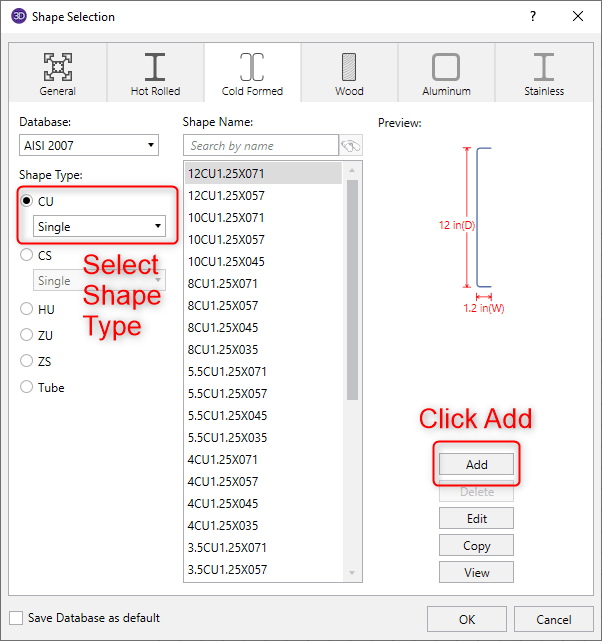
Step 3: Create a name and add section properties to the start shape. Then, click OK.
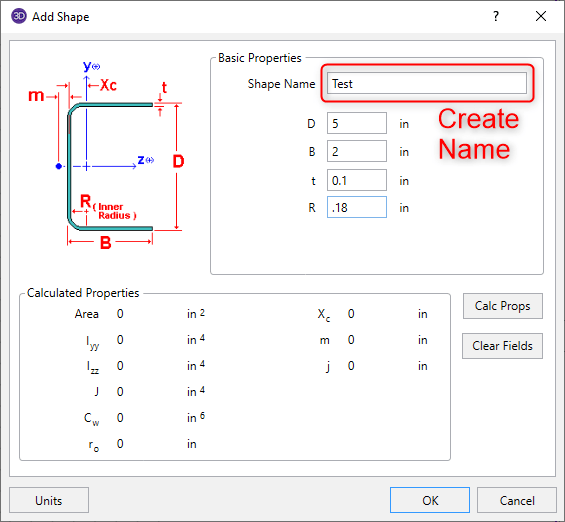
Note: This step is the first attempt at creating the shape and the section properties do not need to be exact just yet
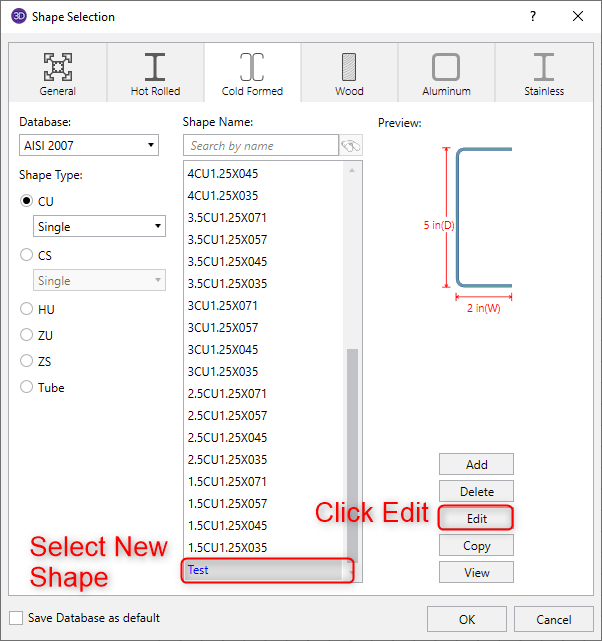
Step 4: Select the new shape and click Edit.
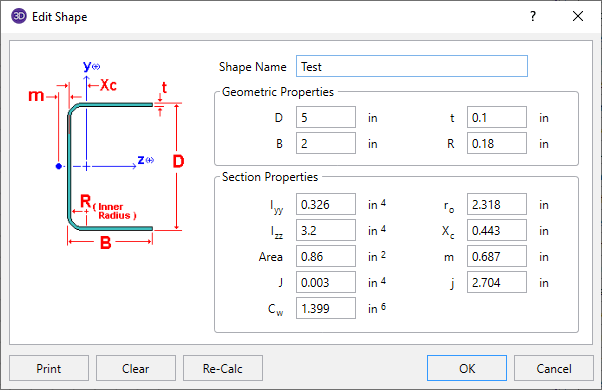
Now you can enter in all the section proprieties from your hand calculations or the RISASection calculations.
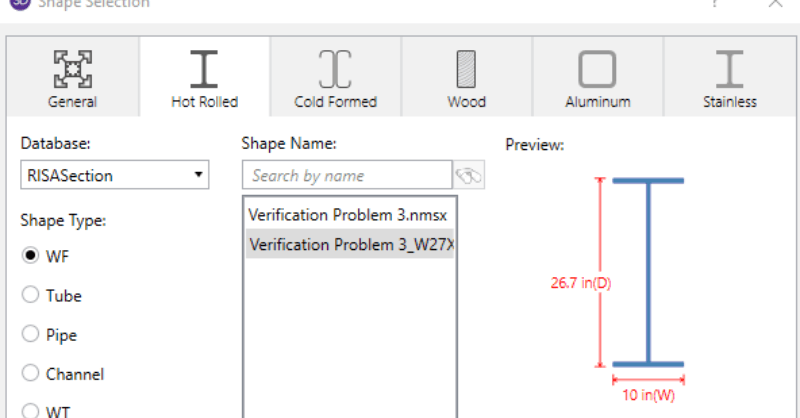
When using RISA Integration between RISASection and RISA-3D, RISA-2D and/or RISAFloor, there are a few common mistakes that people make when...
The new ACI 318-19 concrete code has been implemented into RISA-3D v19, RISAFloor v15, RISAFoundation v13 and RISA-2D v19.
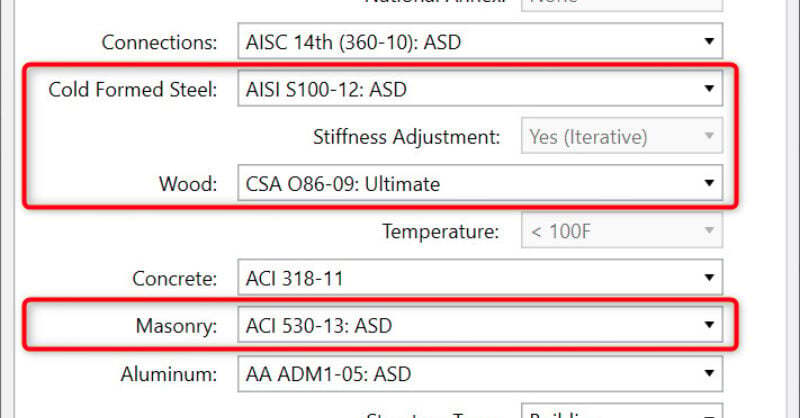
New codes have been added to RISA-3D v13 and RISAFloor v9, these include: AISI S100-12: Cold-Formed Steel Design Code CSA 086-09: Canadian...