Convert Standalone/Network License Type to Subscription with the RISA…
The RISA licensing dashboard allows users to convert existing licensing keys from one type to the other. Before using the licensing dashboard to...

Try the Complete RISA Suite for
10 Days FREE

RISA Education

Video Library

Online Help

Get Support

About Us
RISA network licensed products are hosted with a License Server. This license server distributes the licenses to the Client Machines (local PCs). When launching a RISA network licensed product (on the local PC) the program will search the subnet for a License Server. If a License Server is found then the program will check out a license (if available). Sometimes, the License Server cannot find the License Server and the software will then go into Demonstration mode.
A firewall is blocking communication. To fix this problem you must set an exception for UDP port 5093 on both the server and client for both inbound and outbound.
The license broadcast is timing out. To fix this follow the steps listed below to point a Client Machine (local PC) to a License Server.
If the issue is a timeout, you can fix it by pointing the client machine directly to the License Server. During this process error codes N:3 or N17 will be reported by the client machine to alert you there is a timeout problem.
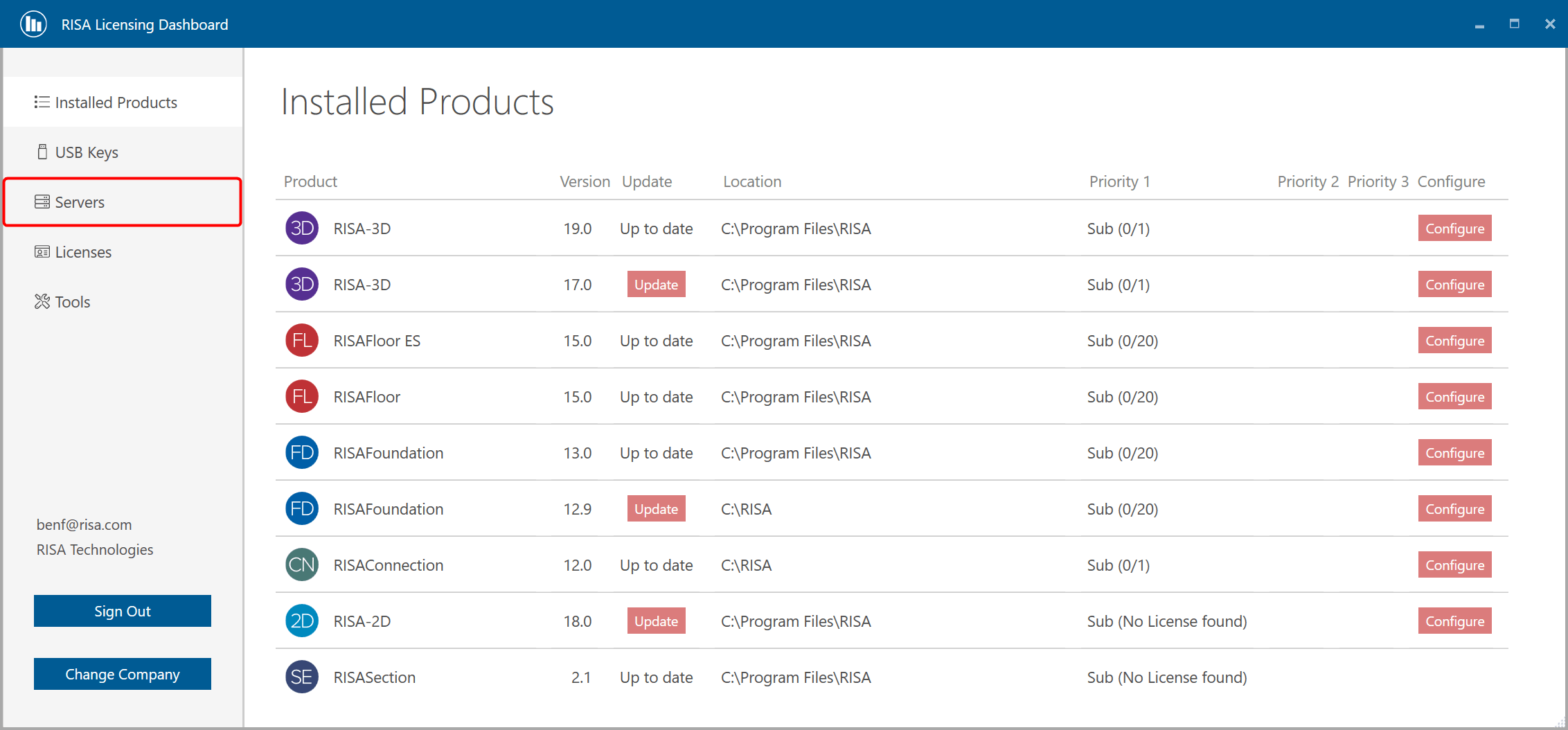
Open the Windows Start Menu and search "RISA Licensing Dashboard" or navigate directly to C:\Program Files\RISA\Utilities to open the RISA Licensing Dashboard.
If required, sign-in to the Licensing Dashboard using your RISA login credentials.
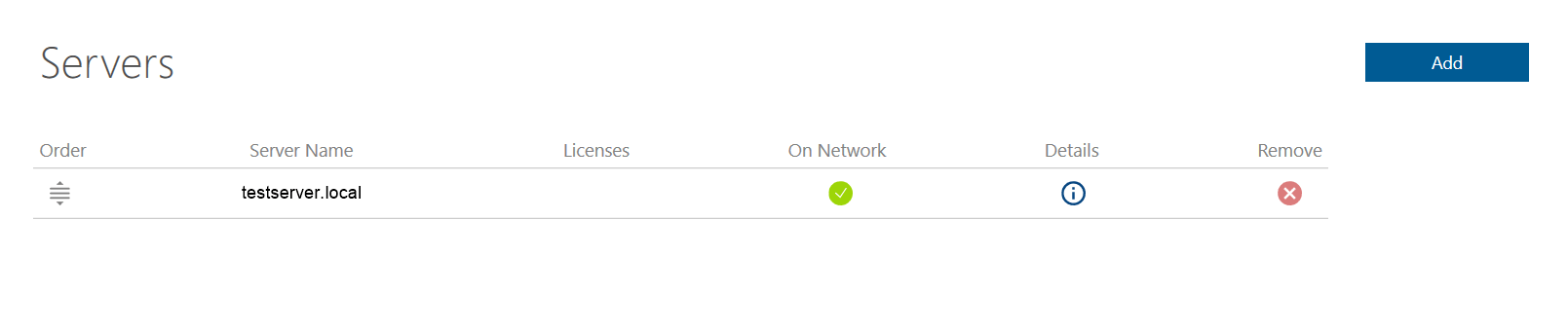
From the main screen, navigate to the Servers tab.
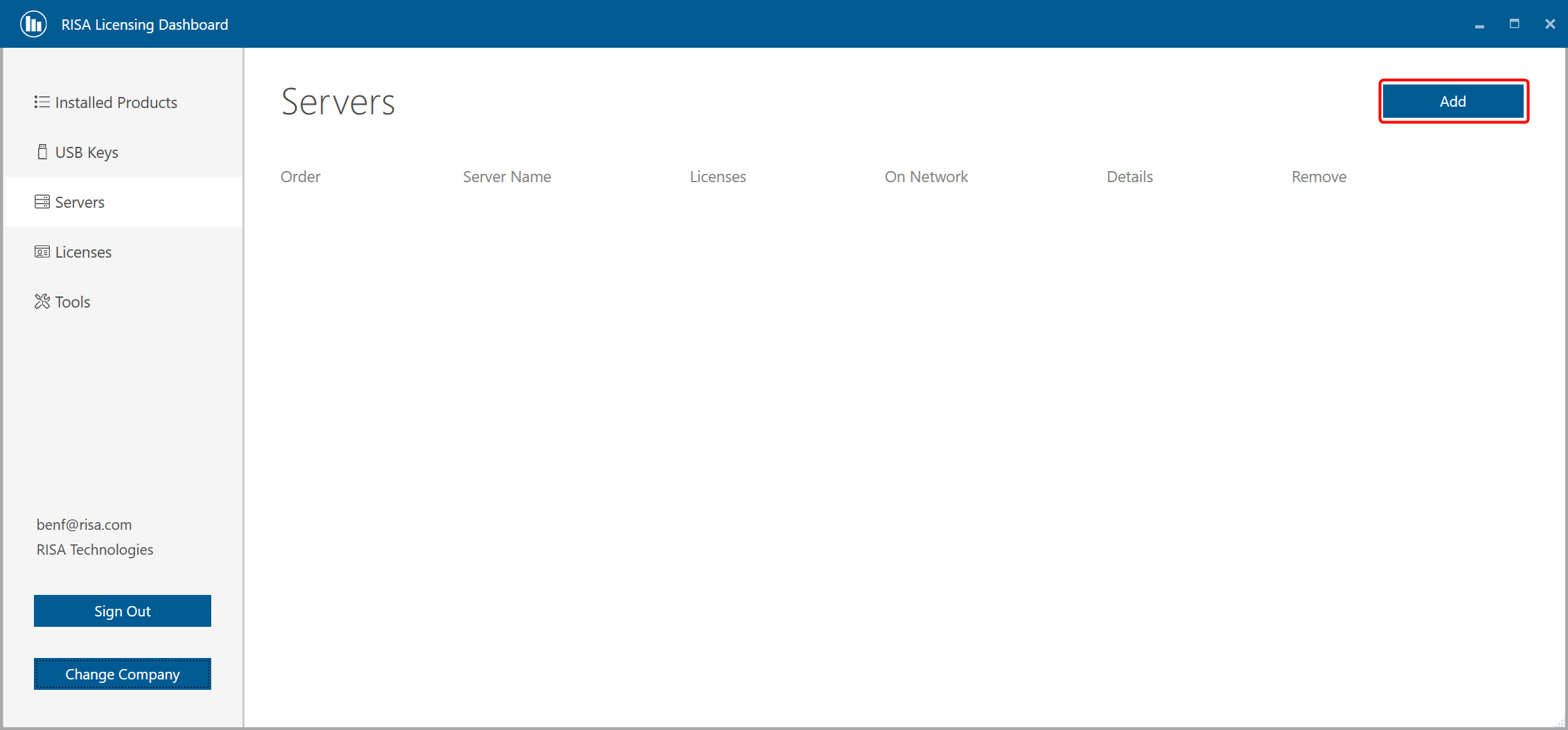
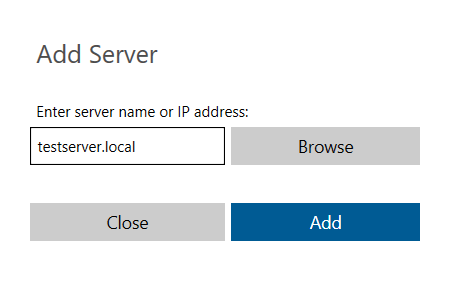
Click the "Add" button, and enter your IP address or FQDN of the RISA license server on your network. You can also use the Browse button to search your network for a licensing server.
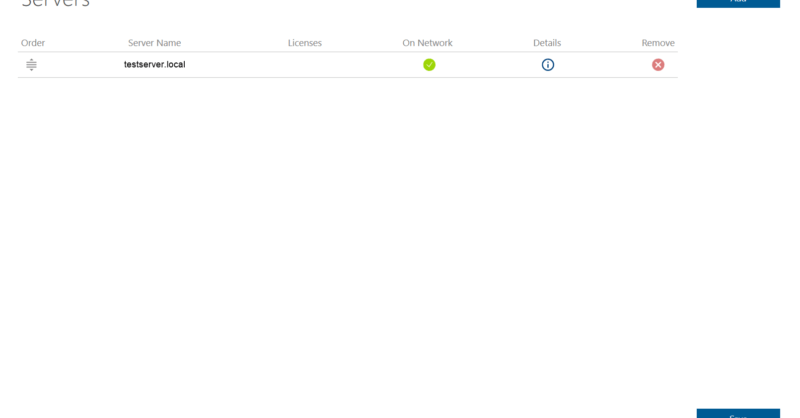
Once the server has been successfully added, you will see the server information listed on the Servers tab. You should now be able to access your RISA software on your local PC.
Notes:
This utility will not work for RISASection.
If you have multiple license servers that run RISA products you may enter multiple IP addresses or FQDN's.
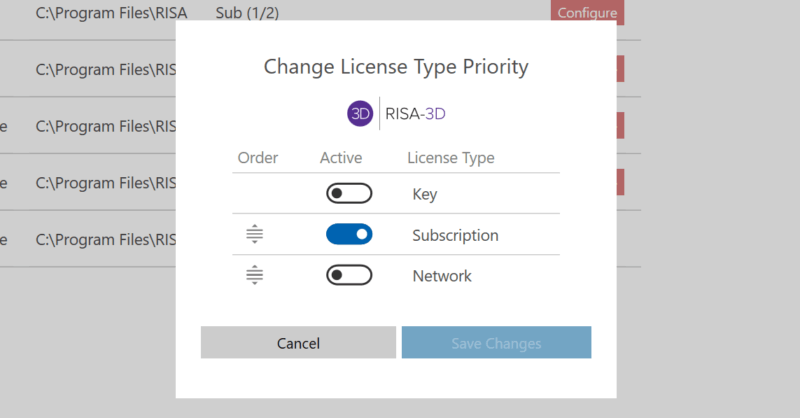
The RISA licensing dashboard allows users to convert existing licensing keys from one type to the other. Before using the licensing dashboard to...
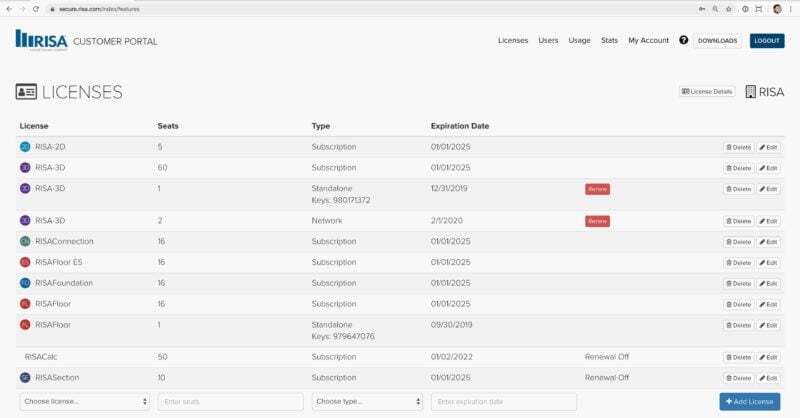
The RISA Customer Portal provides access to all your account information, including installation downloads, licenses, usage stats and the ability...
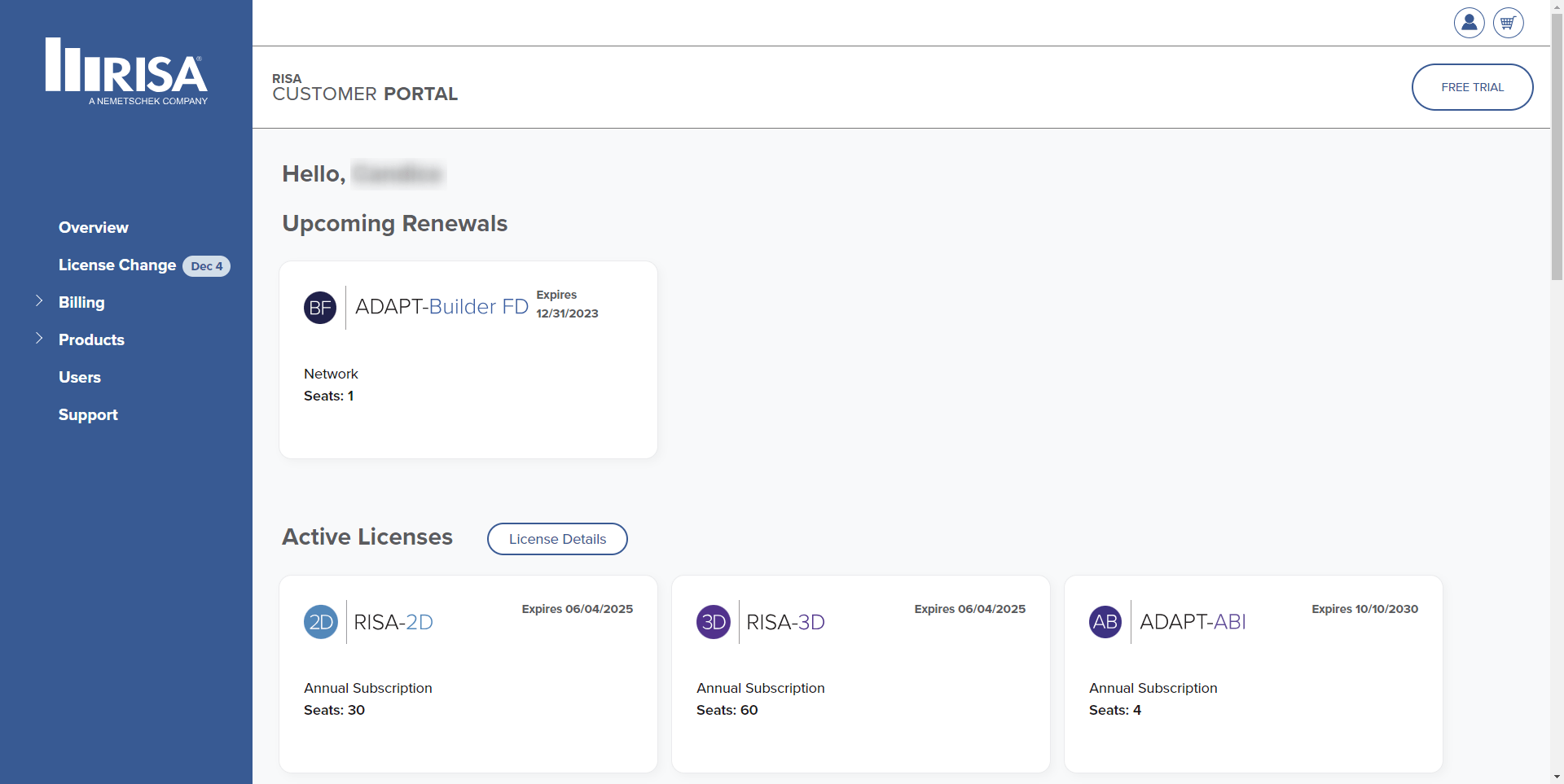
The RISA Customer Portal provides access to all your account information, including installation downloads, licenses, usage stats and the ability...