 By: Admin

Flexibility with RISA Subscription Licensing
Why should you use subscription licensing? License Flexibility With subscription licensing all you need is an occasional Internet connection. This...

Try the Complete RISA Suite for
10 Days FREE

RISA Education

Video Library

Online Help

Get Support

About Us
The issues with Windows 10 (Version 1803) have been solved. However, for customers still using older versions of RISA products, the workaround using compatibility mode described below may still be useful.
It has come to our attention that the recently released Windows 10 Quarterly Update (Build 1803 – Released April 30, 2018) is causing license authentication failures with our Standalone licenses.
Update (June 15, 2018): The recent releases of RISA-3D (16.0.4), RISAFloor (12.0.4) and RISAFoundation (10.0.4) have solved this issue. If you have an active maintenance or subscription agreement, simply install the latest versions using the link listed below. However if you are still using v15 and older, please continue reading to learn how to run RISA in Windows 8 Compatibility mode.
Link: Software Downloads & Installations
The quickest method is to run each of your RISA applications in compatibility mode for Windows 7 or 8. This can be done by navigating to your RISA installation directory, located by default in C:\Program Files\RISA
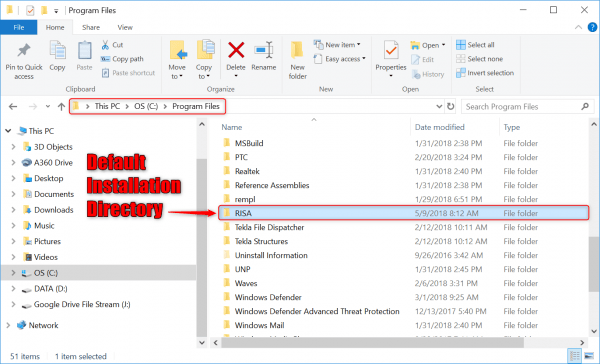
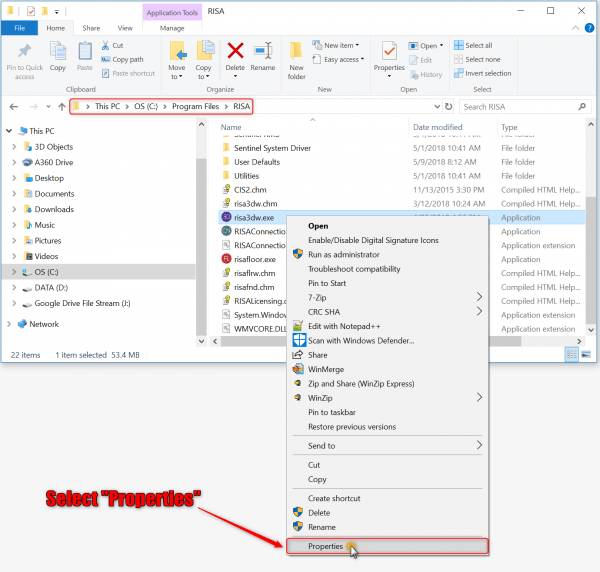
Open the RISA folder and right click on any RISA application that you have installed. In the context menu click on properties.
When the Properties window appears, click on the “Compatibility Tab”. Click the button on the bottom to change the setting for all users.
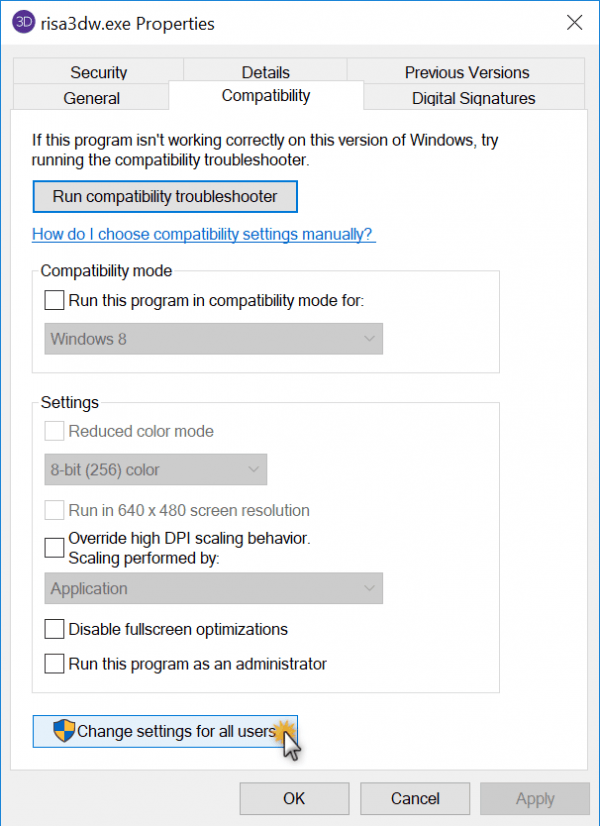
Now you’ll want to check the box to run in compatibility mode and select either Windows 7 or Windows 8 from the drop-down menu and hit “OK” at the bottom.

***Remember, you must repeat these steps for each RISA product you have installed.***
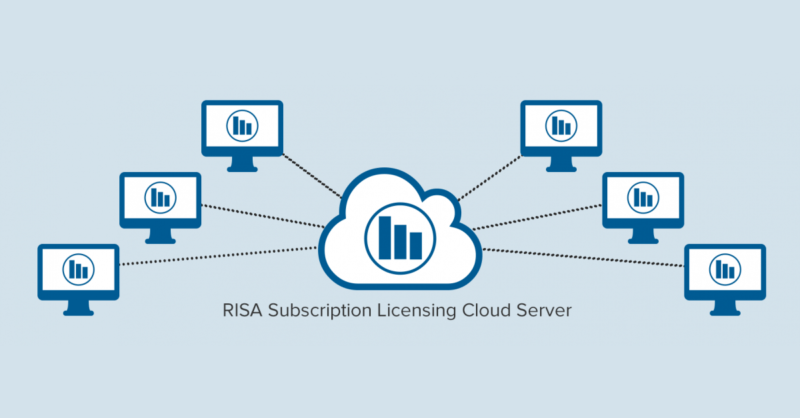
Why should you use subscription licensing? License Flexibility With subscription licensing all you need is an occasional Internet connection. This...

RISA software is staying current with all the Windows updates in order to bring you the best quality that Windows recommends. Unfortunately, that...
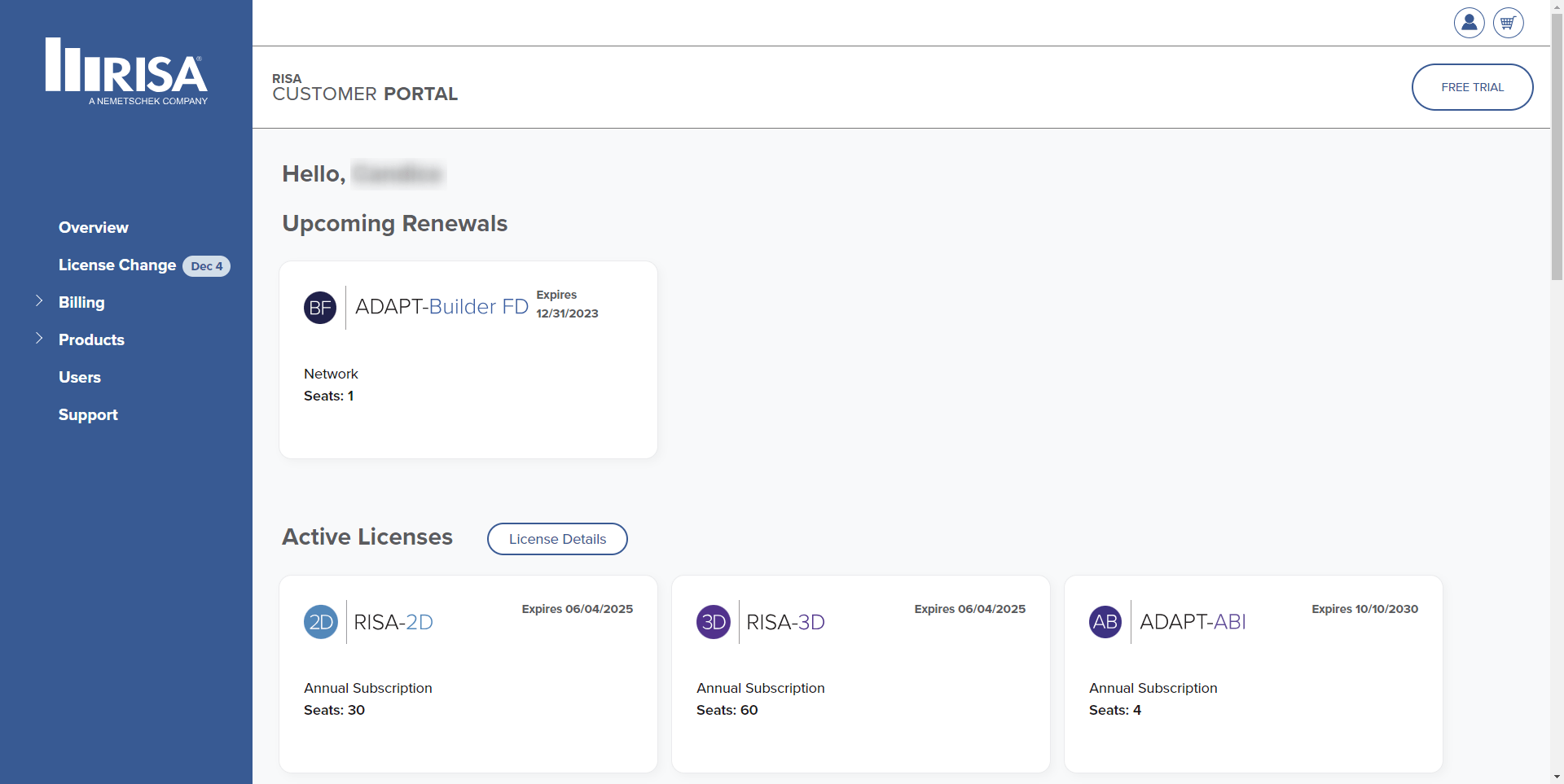
The RISA Customer Portal provides access to all your account information, including installation downloads, licenses, usage stats and the ability...