


 By: RISA

What’s New with RISA and Windows Updates?
RISA software is staying current with all the Windows updates in order...
Now you have the ability to add in your customized company logo to a report.
To begin, save your company logo in the form of a .jpg, .bmp, or .png file to a location on your computer. When you have a model open in RISA, simply click the printer button in the upper left corner and click Print Report from the drop down menu. You will now be in the Report Printing dialog. From here, click the Advanced Settings button at the bottom. This will bring up a new window where you can choose "Custom Logo" and then the Browse button to search for the image file.
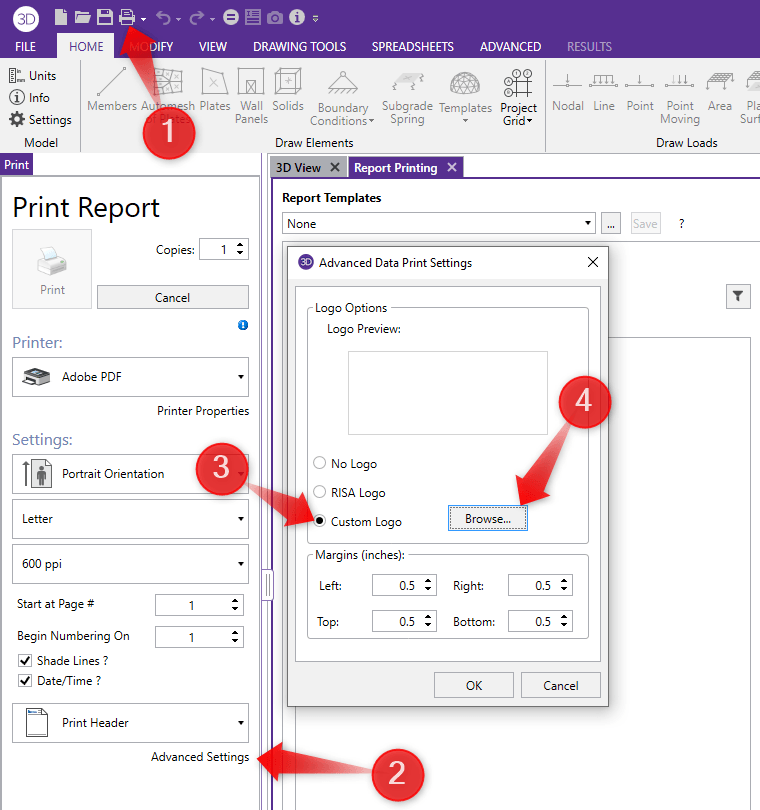
Once you have selected your image, click OK.
Now your company logo will be displayed in the header at the top of each page as you can see in the Print Preview window.


RISA software is staying current with all the Windows updates in order...

The International Code Council just released the 2018 International...

Do you need to include your RISA results into your Excel spreadsheet?...